
First Login Guide
This guide walks you through your first login to TextFlow and helps you get oriented with the platform.
Before You Begin
Section titled “Before You Begin”You should have received:
- ✅ TextFlow URL from your administrator
- ✅ Email address (your login username)
- ✅ Temporary password (via email)
If you haven’t received these, contact your system administrator.
Step 1: Navigate to TextFlow
Section titled “Step 1: Navigate to TextFlow”Open your web browser and go to your TextFlow URL:
- Production: Your organization’s custom URL
Step 2: Enter Your Credentials
Section titled “Step 2: Enter Your Credentials”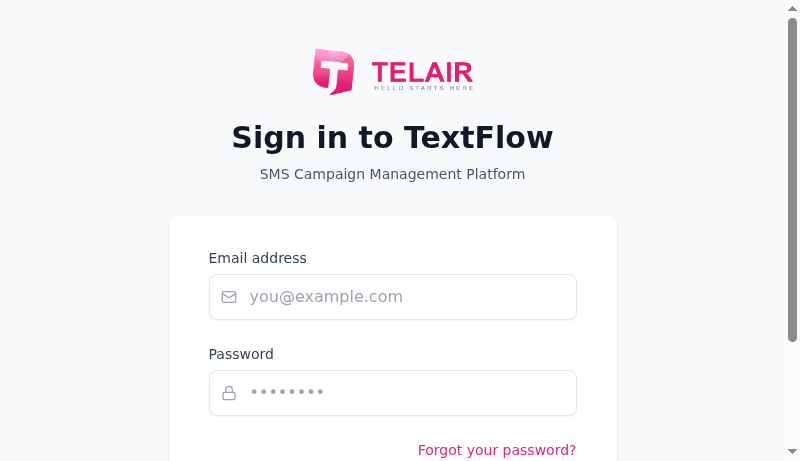
- Enter your email address in the first field
- Enter your password in the second field
- Click Sign in
Step 3: Change Your Password (First-Time Login)
Section titled “Step 3: Change Your Password (First-Time Login)”If your administrator sent you a welcome email with a temporary password, you’ll be redirected to a password change screen.
Password Requirements:
- Minimum 8 characters
- Mix of letters and numbers recommended
- Avoid common passwords
After setting your new password, you’ll be automatically logged in.
Step 4: View the Dashboard
Section titled “Step 4: View the Dashboard”
After successful login, you’ll land on the Dashboard. Here’s what you’ll see:
Performance Metrics
Section titled “Performance Metrics”At the top of the dashboard, you’ll find key performance indicators:
| Metric | Description |
|---|---|
| Messages Sent | Total messages sent this period |
| Delivery Rate | Percentage of messages successfully delivered |
| Response Rate | Percentage of recipients who replied |
| Opt-out Rate | Percentage of recipients who unsubscribed |
| Bounce Rate | Percentage of failed deliveries |
| Error Rate | Percentage of messages with errors |
Phone Numbers
Section titled “Phone Numbers”View your organization’s SMS-enabled phone numbers:
- Number name/label
- Phone number (format: +1 XXX-XXX-XXXX)
- Status (Primary, Secondary, etc.)
Team Members
Section titled “Team Members”See other users in your organization:
- Email addresses
- Active/Inactive status
Subscription Plan
Section titled “Subscription Plan”Your current plan details:
- Plan name
- Monthly cost
- Status
- Usage statistics
Usage Metrics
Section titled “Usage Metrics”Monitor your message usage:
- This Month’s Usage: Total messages used vs. plan limit
- Today’s Usage: Daily limit tracking
- Next Reset: When your usage counters reset
Message Activity Chart
Section titled “Message Activity Chart”Visual representation of recent messaging activity:
- Sent messages
- Delivered messages
- Responses received
- Bounced/Failed messages
Step 5: Configure Your Profile
Section titled “Step 5: Configure Your Profile”Before you start using TextFlow, set up your profile:
- Click Settings in the top navigation
- Click the Profile tab

Update the following:
- First Name: Your given name
- Last Name: Your family name
- Phone (optional): Your phone number
- Timezone: Your local timezone for scheduling
- Click Save Profile
Step 6: Explore the Navigation
Section titled “Step 6: Explore the Navigation”TextFlow’s main navigation bar includes:
| Tab | Purpose |
|---|---|
| Dashboard | Performance overview and quick actions |
| Contacts | Manage contact lists and subscribers |
| Campaigns | Create and monitor SMS campaigns |
| Messages | Two-way messaging inbox |
| Settings | Account and system configuration |
Step 7: User Menu
Section titled “Step 7: User Menu”Click your initials in the top-right corner to access:
- Your name and email
- Sign out option
Troubleshooting First Login
Section titled “Troubleshooting First Login””Invalid credentials” Error
Section titled “”Invalid credentials” Error”Cause: Incorrect email or password
Solution:
- Double-check your email address (no typos)
- Verify your password (case-sensitive)
- Use the Forgot your password? link if needed
”Too many authentication attempts”
Section titled “”Too many authentication attempts””Cause: Multiple failed login attempts triggered rate limiting
Solution:
- Wait 15 minutes before trying again
- Contact your administrator if urgent
Can’t Receive Password Reset Email
Section titled “Can’t Receive Password Reset Email”Cause: Email delivery issues
Solution:
- Check your spam/junk folder
- Verify the email address is correct
- Contact your administrator to resend the welcome email
Next Steps
Section titled “Next Steps”Now that you’re logged in:
- Dashboard Overview - Learn about all dashboard features
- Understand Roles & Permissions - Know what you can do based on your role
- Import Contacts - Add your first contacts
- Create a Campaign - Launch your first SMS campaign
Security Best Practices
Section titled “Security Best Practices”- ✅ Use a strong, unique password
- ✅ Don’t share your login credentials
- ✅ Log out when using shared computers
- ✅ Enable two-factor authentication (if available)
- ✅ Report suspicious activity to your administrator
Welcome to TextFlow! You’re now ready to start managing your SMS campaigns.