
Auto-Responders
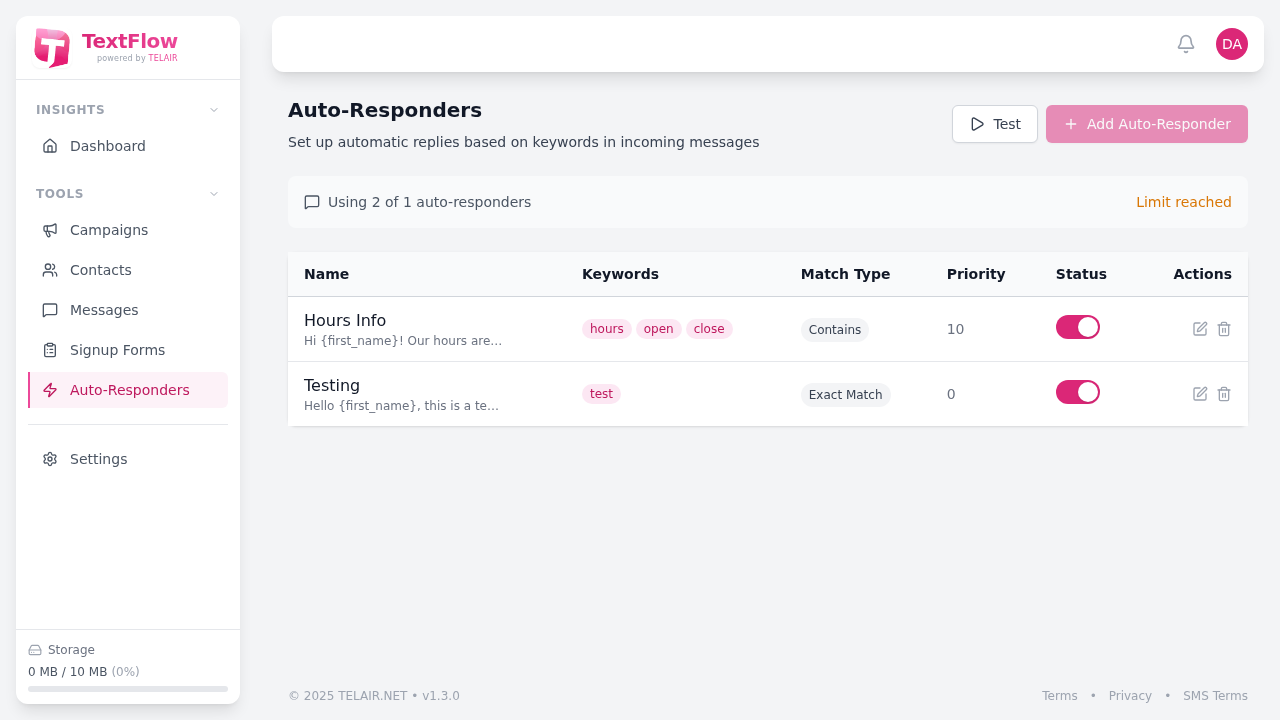
Auto-Responders automatically reply to incoming SMS messages based on keyword matching, helping you provide instant responses to common questions even when you’re away.
Overview
Section titled “Overview”Auto-Responders listen for specific keywords in incoming messages and send pre-configured responses automatically. This is useful for:
- Business hours: “Our hours are Monday-Friday, 9am-5pm”
- Pricing inquiries: “View our menu at example.com/menu”
- Support requests: Route to help desk or provide FAQ answers
- After-hours: “Thanks for your message! We’ll reply during business hours”
Creating an Auto-Responder
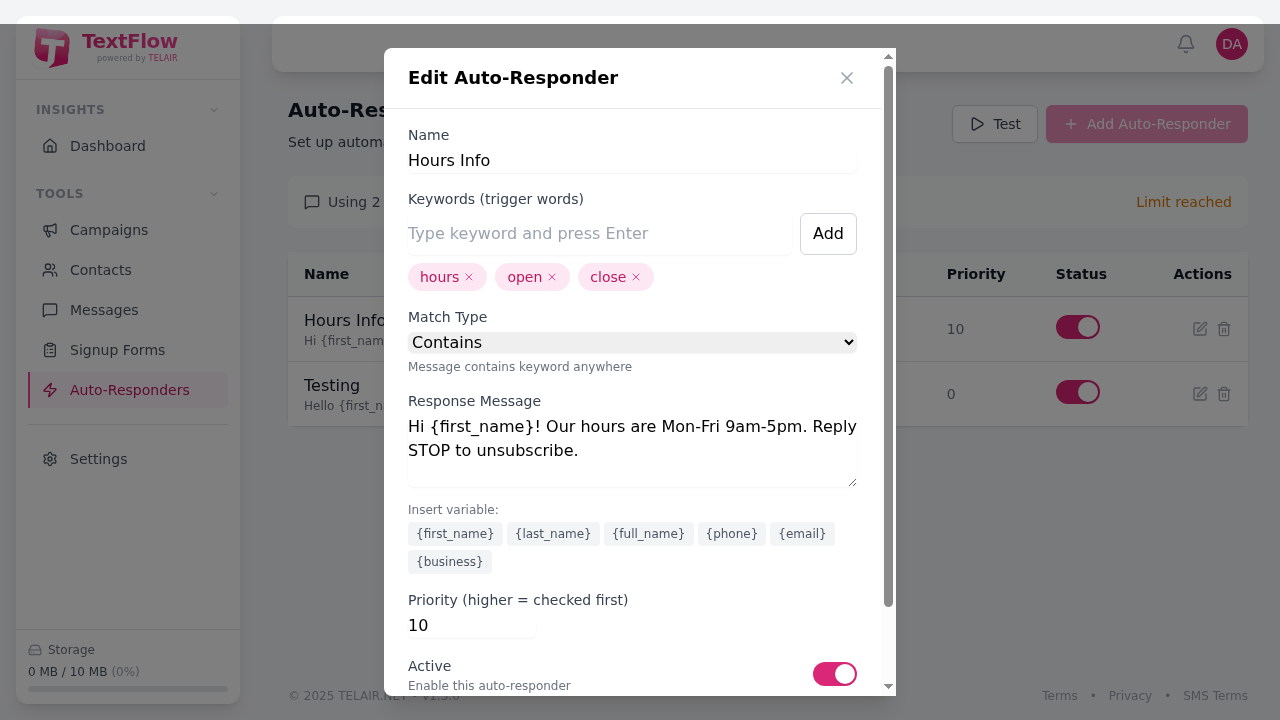
Section titled “Creating an Auto-Responder”- Navigate to Auto-Responders in the sidebar
- Click Add Auto-Responder
- Configure the settings (see below)
- Click Save
Configuration Options
Section titled “Configuration Options”| Field | Description |
|---|---|
| Name | Internal name to identify this auto-responder |
| Keywords | Comma-separated words/phrases to match |
| Match Type | How to match keywords (see Match Types below) |
| Response Message | The message to send back |
| Priority | Order of evaluation (lower = higher priority) |
| Active | Toggle to enable/disable |
Match Types
Section titled “Match Types”Choose how keywords are matched against incoming messages:
| Type | Description | Example |
|---|---|---|
| Exact Match | Message must be exactly the keyword | ”hours” matches “hours”, not “business hours” |
| Contains | Message contains the keyword anywhere | ”hours” matches “what are your hours” |
| Fuzzy | Tolerates minor typos and variations | ”horus” or “hourss” matches “hours” |
| AI | Uses AI to understand intent (Pro+ only) | “when are you open” matches hours intent |
Personalization Variables
Section titled “Personalization Variables”Use variables to personalize auto-responses:
| Variable | Replaced With |
|---|---|
{first_name} | Contact’s first name |
{last_name} | Contact’s last name |
{phone} | Contact’s phone number |
{company} | Your organization name |
Example:
Hi {first_name}! Thanks for reaching out to {company}.Our hours are Mon-Fri 9am-5pm EST.Reply STOP to unsubscribe.Priority and Ordering
Section titled “Priority and Ordering”When multiple auto-responders could match a message, TextFlow uses priority to determine which one fires:
- Lower numbers = higher priority (0 is highest)
- Only the first matching auto-responder sends a reply
- System keywords (STOP, HELP) always have highest priority
Example Priority Setup:
| Priority | Name | Keywords | Purpose |
|---|---|---|---|
| 0 | Emergency | ”urgent”, “emergency” | Route to on-call |
| 10 | Hours | ”hours”, “open”, “close” | Business hours |
| 20 | Pricing | ”price”, “cost”, “menu” | Pricing info |
| 100 | Catch-All | * (any) | After-hours greeting |
Testing Auto-Responders
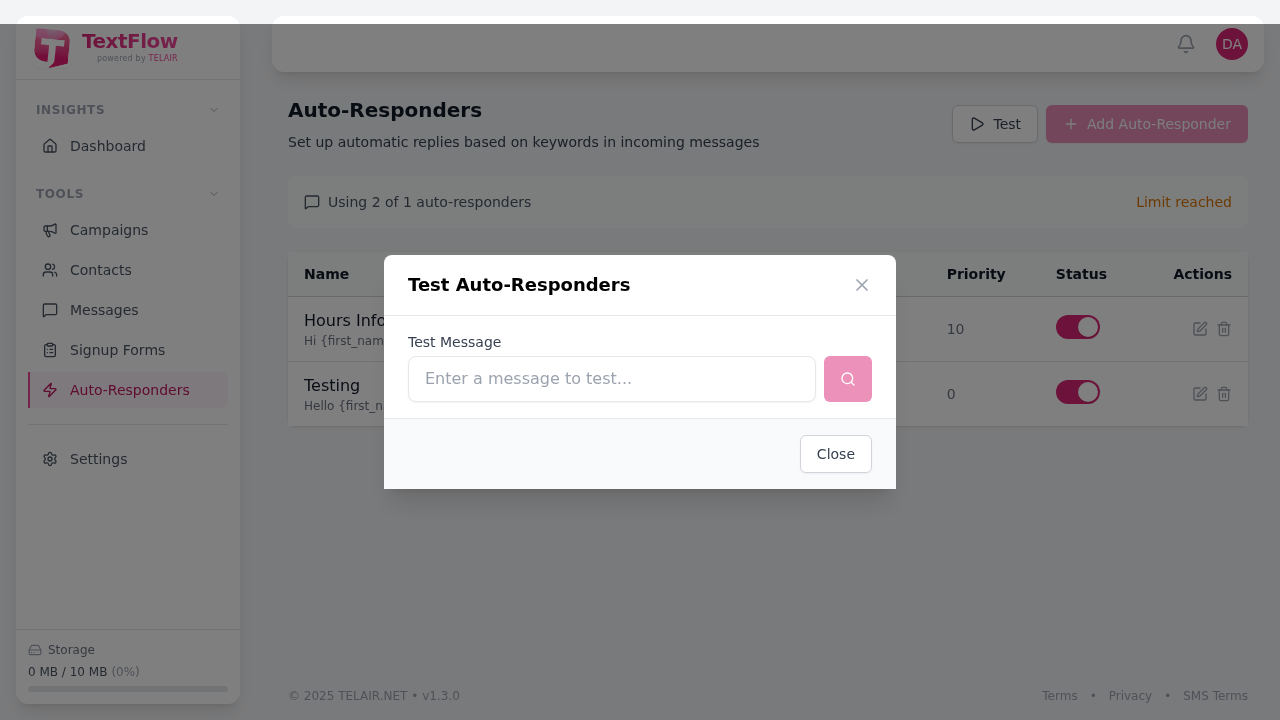
Section titled “Testing Auto-Responders”Before going live, test your auto-responders:
- Click the Test button on the Auto-Responders page
- Enter a sample incoming message
- See which auto-responder would match
- Verify the response message
Best Practices
Section titled “Best Practices”Keep Responses Concise
Section titled “Keep Responses Concise”SMS has a 160-character limit per segment. Longer messages:
- Cost more (multiple segments)
- May be split awkwardly
- Are less likely to be read fully
Include Opt-Out Information
Section titled “Include Opt-Out Information”Canadian CASL regulations require opt-out instructions. Include them in your responses:
Reply STOP to unsubscribe.Set Appropriate Expectations
Section titled “Set Appropriate Expectations”Let contacts know when they’ll receive a human response:
Thanks for your message! A team member will reply within 1 business hour.Use Specific Keywords
Section titled “Use Specific Keywords”Avoid overly generic keywords that might match unintended messages:
- ✅ Good: “hours”, “pricing”, “location”
- ❌ Avoid: “hi”, “hello”, “yes” (too common)
Monitor and Refine
Section titled “Monitor and Refine”Regularly review:
- Which auto-responders fire most often
- Messages that didn’t match any auto-responder
- Customer feedback on automated responses
Managing Auto-Responders
Section titled “Managing Auto-Responders”Edit an Auto-Responder
Section titled “Edit an Auto-Responder”- Find the auto-responder in the list
- Click Edit
- Make your changes
- Click Save
Enable/Disable
Section titled “Enable/Disable”Toggle the status switch in the list to quickly enable or disable an auto-responder without deleting it.
Delete an Auto-Responder
Section titled “Delete an Auto-Responder”- Find the auto-responder in the list
- Click Delete
- Confirm deletion
Plan Limits
Section titled “Plan Limits”Auto-responders are subject to your plan limits:
| Plan | Auto-Responders | AI Match Type |
|---|---|---|
| Starter | Not available | Not available |
| Pro | Up to 10 | Included |
| Business | Unlimited | Included |
| Enterprise | Unlimited | Included |
View your current usage at the top of the Auto-Responders page.
Troubleshooting
Section titled “Troubleshooting”Auto-Responder Not Firing
Section titled “Auto-Responder Not Firing”Possible causes:
- Auto-responder is disabled
- Keywords don’t match (check match type)
- Higher-priority responder matched instead
- Contact has opted out
Solutions:
- Verify the auto-responder is active (toggle is on)
- Test with the Test modal
- Check priority order
- Verify contact’s opt-out status
Unexpected Matches
Section titled “Unexpected Matches”Possible causes:
- Match type too broad (“Contains” matching partial words)
- Generic keywords matching unintended messages
- AI matching being too lenient
Solutions:
- Use “Exact Match” for precise control
- Make keywords more specific
- Adjust AI sensitivity in settings
Response Not Personalized
Section titled “Response Not Personalized”Possible causes:
- Variable name misspelled
- Contact doesn’t have that field populated
Solutions:
- Check variable syntax:
{first_name}not{{first_name}} - Provide fallback text for unknown contacts
Next Steps
Section titled “Next Steps”- Messaging Overview - Learn about the messaging inbox
- Creating Campaigns - Send bulk SMS campaigns
- AI Assistant - Use AI to generate messages
Auto-responders help you provide instant customer service 24/7. Set them up thoughtfully to enhance your customer experience!