
Embedding Signup Forms
This guide explains how to embed your TextFlow signup forms on your website.
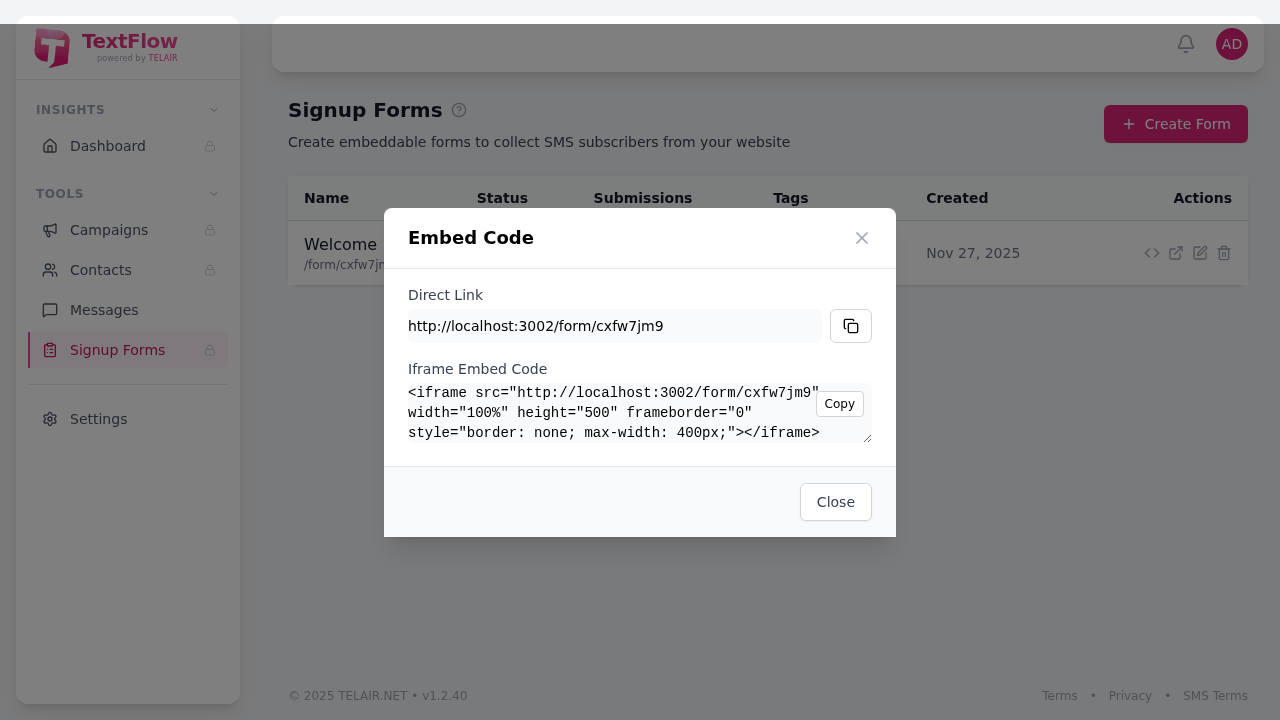
Getting the Embed Code
Section titled “Getting the Embed Code”- Navigate to Signup Forms in the sidebar
- Find your form in the list
- Click the code icon (embed) button
- Copy the provided code
Embedding Options
Section titled “Embedding Options”Option 1: Iframe Embed (Recommended)
Section titled “Option 1: Iframe Embed (Recommended)”The iframe method is the simplest way to add a form to your website:
<iframe src="https://app.textflow.ca/form/your-form-id" width="100%" height="500" frameborder="0" style="border: none; max-width: 400px;"></iframe>Advantages:
- Works on any website platform
- Form styling is consistent
- Easy to implement
- Automatic updates when you modify the form
Considerations:
- Fixed height may need adjustment
- Limited styling customization from parent page
Option 2: Direct Link
Section titled “Option 2: Direct Link”Share the form URL directly for standalone access:
https://app.textflow.ca/form/your-form-idUse cases:
- Share via email or social media
- Link from buttons or text
- QR codes for print materials
- SMS links to your form
Platform-Specific Instructions
Section titled “Platform-Specific Instructions”WordPress
Section titled “WordPress”- Edit the page or post where you want the form
- Add an HTML block or Custom HTML widget
- Paste the iframe code
- Adjust the width/height as needed
- Save and preview
Shopify
Section titled “Shopify”- Go to Online Store > Pages
- Select or create a page
- Click Show HTML in the editor
- Paste the iframe code
- Save the page
- Add an Embed element to your page
- Select HTML iframe
- Paste the iframe code
- Adjust the size in the editor
- Publish your changes
Squarespace
Section titled “Squarespace”- Add a Code Block to your page
- Paste the iframe code
- Disable Display Source option
- Save and publish
Custom HTML Websites
Section titled “Custom HTML Websites”Simply paste the iframe code wherever you want the form to appear:
<div class="signup-form-container"> <iframe src="https://app.textflow.ca/form/your-form-id" width="100%" height="500" frameborder="0" title="SMS Signup Form" ></iframe></div>Responsive Embedding
Section titled “Responsive Embedding”To make your form responsive on all devices:
<div style="max-width: 400px; margin: 0 auto;"> <iframe src="https://app.textflow.ca/form/your-form-id" width="100%" height="500" frameborder="0" style="border: none;" ></iframe></div>Form Preview
Section titled “Form Preview”
The embedded form displays with your customized:
- Title and description
- Form fields
- Brand colors
- Submit button text
- Consent checkbox and text
Troubleshooting
Section titled “Troubleshooting”Form Not Displaying
Section titled “Form Not Displaying”- Verify the form is set to Active status
- Check that the form ID in the URL is correct
- Ensure your website allows iframe embedding
- Test the direct link to confirm the form works
Form Height Issues
Section titled “Form Height Issues”If the form is cut off or has too much whitespace:
<!-- Adjust height value as needed --><iframe src="https://app.textflow.ca/form/your-form-id" height="450" ...></iframe>Recommended heights:
- Basic form (phone + name): 400px
- With optional fields: 500px
- With long description: 550px
Cross-Origin Issues
Section titled “Cross-Origin Issues”If your site shows security warnings:
- Ensure you’re using HTTPS on your website
- The form URL uses HTTPS by default
- Contact support if issues persist
Testing Your Embedded Form
Section titled “Testing Your Embedded Form”After embedding:
- Visit your website page
- Fill out the form with test data
- Verify the success message displays
- Check TextFlow contacts for the new submission
- Confirm tags were applied correctly
Next Steps
Section titled “Next Steps”- Customize your form’s appearance
- Set up a welcome campaign for new subscribers
- Create different forms for different signup sources