
Team Management
The Team tab allows administrators to manage team members, assign roles, and control phone number access within your organization.
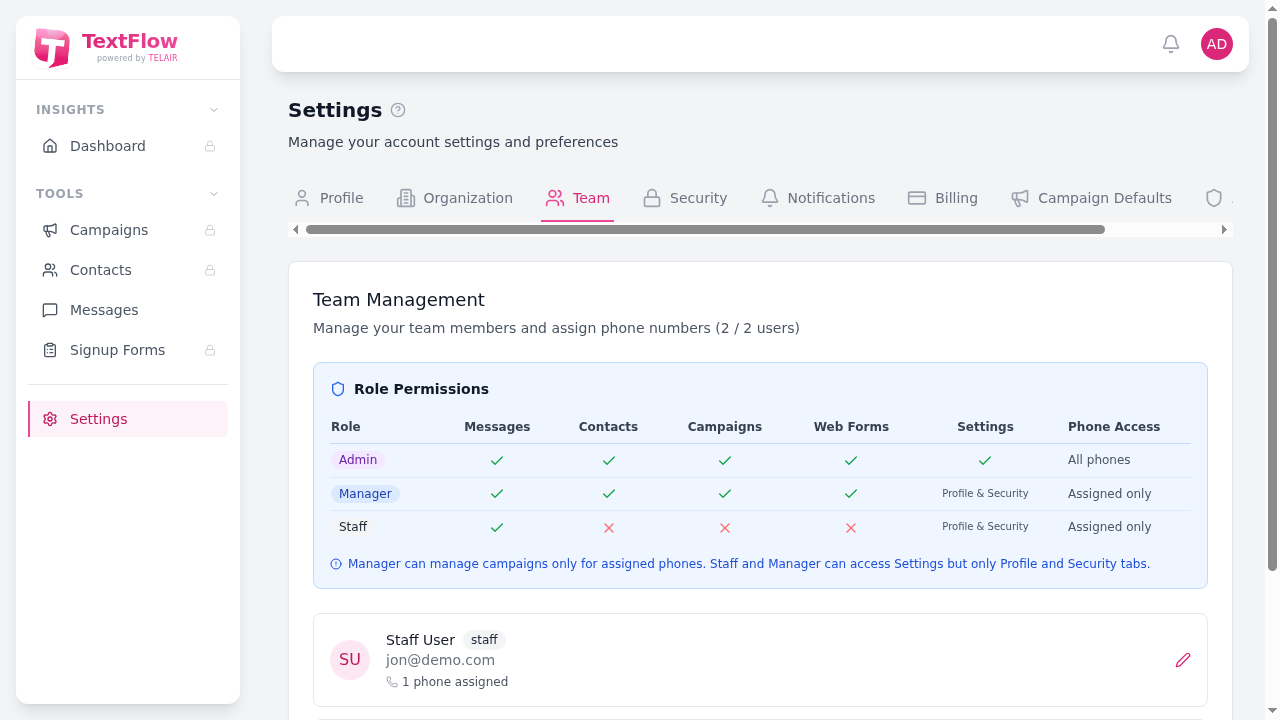
Role Permissions
Section titled “Role Permissions”TextFlow uses a role-based access control system. Each role has different permissions:
| Role | Messages | Contacts | Campaigns | Web Forms | Settings | Phone Access |
|---|---|---|---|---|---|---|
| Admin | Full | Full | Full | Full | Full | All phones |
| Manager | Full | Full | Full | Full | Profile & Security | Assigned only |
| Staff | View | View | View | None | Profile & Security | Assigned only |
- Full access to all features
- Can manage users and organization settings
- Access to all phone numbers
- Can view billing and API settings
Manager
Section titled “Manager”- Can create and manage campaigns
- Full access to contacts and messages
- Limited to assigned phone numbers only
- Can access Profile and Security settings only
- View-only access to campaigns and contacts
- Can respond to messages on assigned phones
- Limited to Profile and Security settings
- Cannot access Web Forms
Team Member List
Section titled “Team Member List”The team list displays all users in your organization:
- Avatar & Name - User’s initials and full name
- Role - Current role assignment
- Email - User’s email address
- Phone Assignment - Number of phones assigned to this user
Managing Team Members
Section titled “Managing Team Members”Adding New Users
Section titled “Adding New Users”Click the menu button on any user row to access management options. New users are created by administrators and receive a welcome email with temporary login credentials.
Assigning Phone Numbers
Section titled “Assigning Phone Numbers”Managers and Staff can only send/receive messages from phones assigned to them:
- Click the menu button next to a user
- Select “Manage Phones”
- Check the phones this user should have access to
- Save changes
Changing Roles
Section titled “Changing Roles”To change a user’s role:
- Click the menu button next to the user
- Select “Change Role”
- Choose the new role
- Confirm the change
User Limits
Section titled “User Limits”Your subscription plan determines the maximum number of users allowed. The current usage is shown in the header (e.g., “2 / 2 users”). Contact support to increase your user limit.