
Security Settings
The Security tab allows you to change your password and manage account security settings.
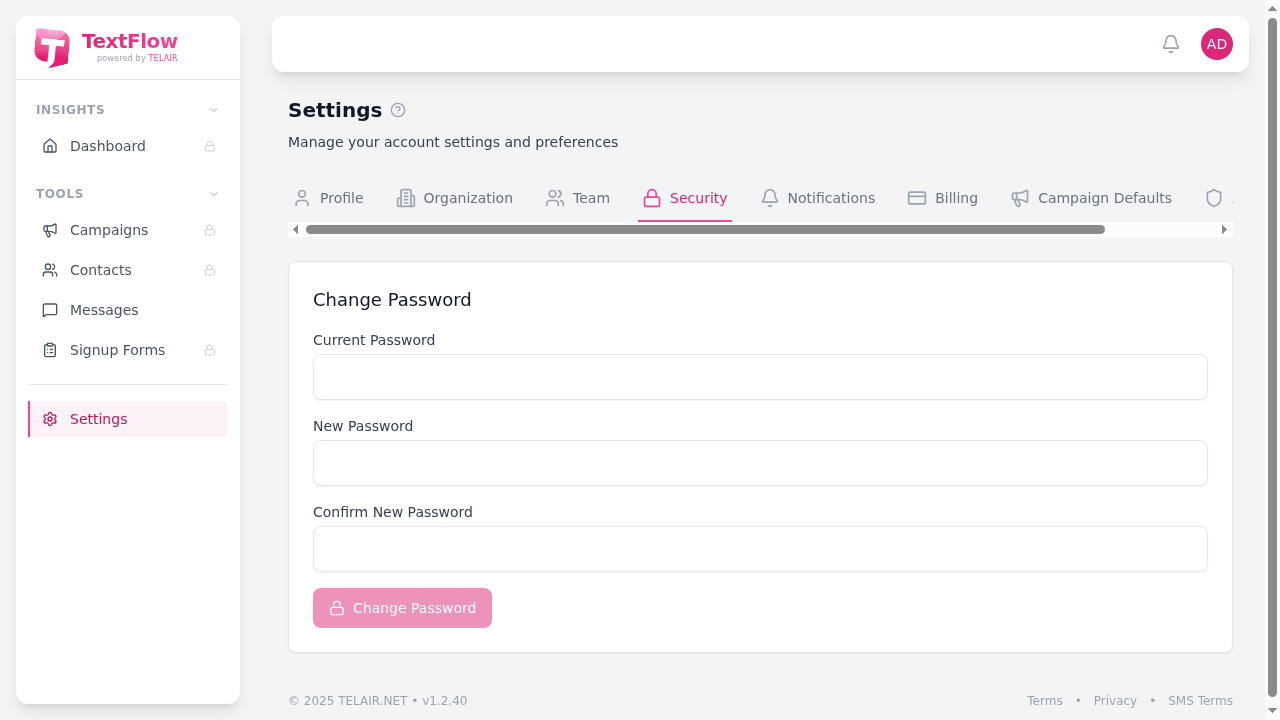
Change Password
Section titled “Change Password”To change your password:
- Current Password - Enter your current password to verify your identity
- New Password - Enter your new password
- Confirm New Password - Re-enter your new password to confirm
- Click Change Password
Password Requirements
Section titled “Password Requirements”Your new password must meet these requirements:
- Minimum 8 characters
- At least one uppercase letter
- At least one lowercase letter
- At least one number
- At least one special character
Password Tips
Section titled “Password Tips”- Use a unique password not used on other sites
- Consider using a password manager
- Avoid personal information like birthdays or names
- Change your password periodically
First-Time Login
Section titled “First-Time Login”If you’re logging in for the first time with a temporary password, you’ll be required to change it before accessing the platform. This ensures only you know your password.
Forgot Password?
Section titled “Forgot Password?”If you’ve forgotten your password, use the “Forgot Password” link on the login page. A password reset code will be sent to your email address. See Password Reset for detailed instructions.
Account Lockout
Section titled “Account Lockout”For security, accounts are temporarily locked after 5 failed login attempts within 15 minutes. If your account is locked:
- Wait 15 minutes for the lockout to expire
- Or use the password reset feature to regain access
Contact your administrator if you continue to have issues accessing your account.