
Notification Settings
The Notifications tab allows administrators to configure which email notifications they receive from TextFlow.
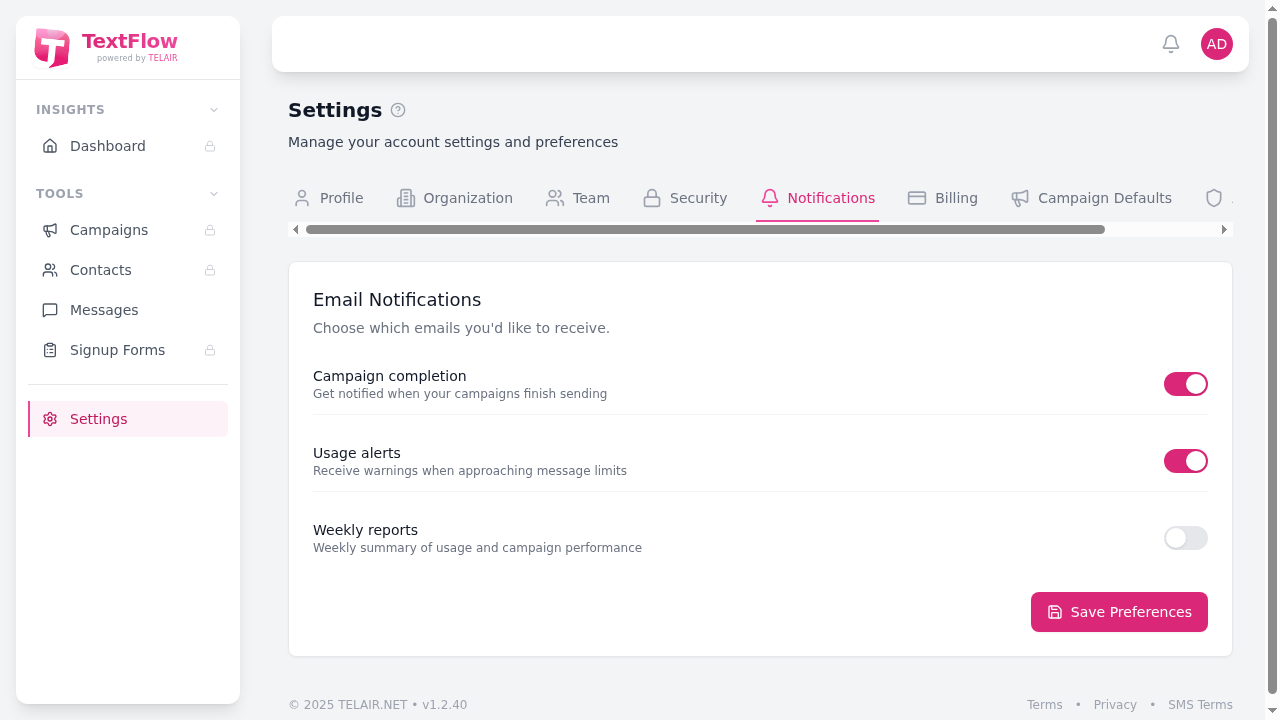
Email Notifications
Section titled “Email Notifications”Toggle each notification type on or off based on your preferences:
Campaign Completion
Section titled “Campaign Completion”Default: On
Receive an email when your campaigns finish sending. The email includes:
- Campaign name
- Total messages sent
- Delivery statistics (delivered, failed)
- Overall delivery rate
This is useful for monitoring campaign performance without needing to check the dashboard.
Usage Alerts
Section titled “Usage Alerts”Default: On
Receive warnings when approaching your message limits:
- 80% threshold - Early warning to plan ahead
- 95% threshold - Urgent warning before hitting limits
These alerts help you avoid campaign interruptions due to exhausted message credits.
Weekly Reports
Section titled “Weekly Reports”Default: Off
Receive a weekly summary email every Monday at 9am containing:
- Messages sent and received during the week
- Overall delivery rate
- Top performing campaigns
- Current usage percentage
- Remaining message credits
Enable this to stay informed about your TextFlow usage without logging in.
Saving Preferences
Section titled “Saving Preferences”After adjusting your notification preferences, click Save Preferences to apply the changes. Your preferences take effect immediately.
Email Delivery
Section titled “Email Delivery”Notification emails are sent to your account email address. Make sure to:
- Add
noreply@textflow.appto your contacts - Check your spam folder if emails aren’t arriving
- Verify your email address is correct in Profile settings