
API & Integrations
The API & Integrations tab allows administrators to manage API keys for external integrations and configure webhooks for real-time event notifications.
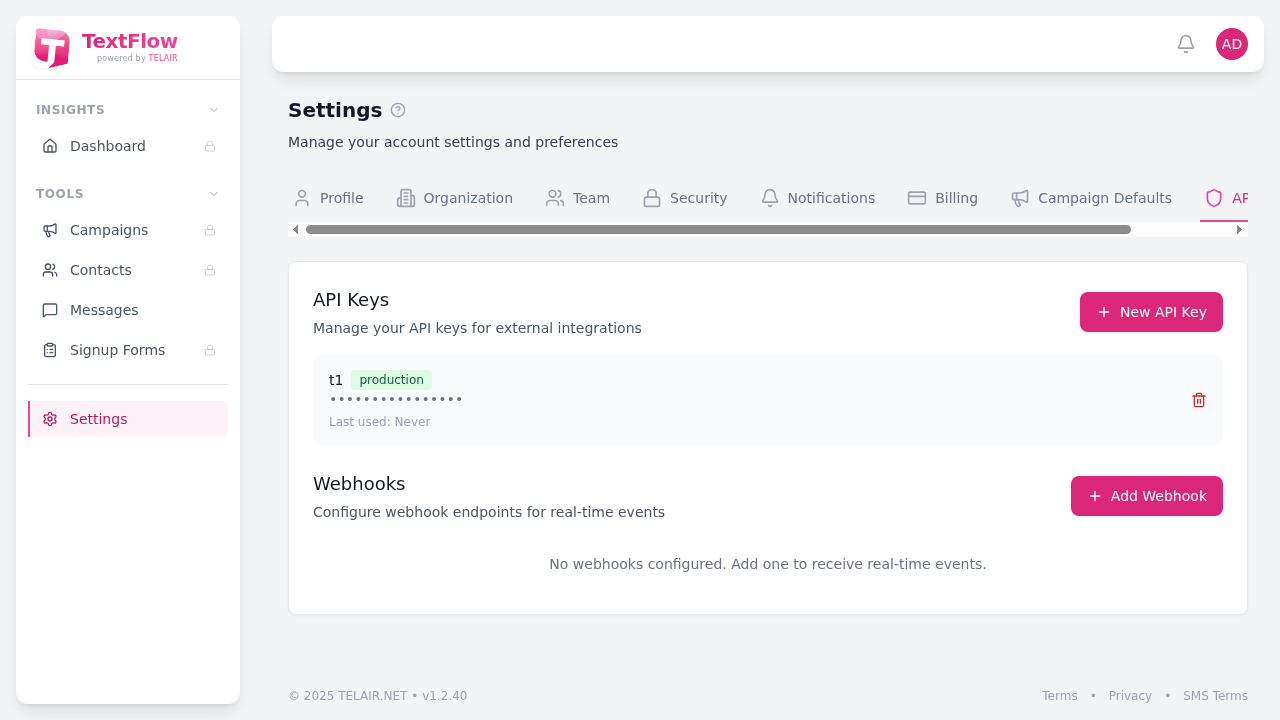
API Keys
Section titled “API Keys”API keys allow external applications to interact with TextFlow programmatically.
Viewing API Keys
Section titled “Viewing API Keys”Your existing API keys are displayed in a list showing:
- Key prefix - First few characters for identification (e.g.,
t1) - Environment - Production or Test
- Masked key - Hidden for security
- Last used - When the key was last used, or “Never”
Creating a New API Key
Section titled “Creating a New API Key”- Click New API Key
- Enter a descriptive name (e.g., “CRM Integration”)
- Select the environment:
- Production - For live applications
- Test - For development and testing
- Click Create
- Copy the key immediately - It won’t be shown again
Deleting an API Key
Section titled “Deleting an API Key”Click the delete button next to any key to revoke it. This immediately invalidates the key and any applications using it will stop working.
API Key Security Best Practices
Section titled “API Key Security Best Practices”- Never share API keys in public repositories
- Use test keys during development
- Rotate production keys periodically
- Use separate keys for different integrations
- Delete unused keys promptly
Webhooks
Section titled “Webhooks”Webhooks allow TextFlow to send real-time notifications to your applications when events occur.
Adding a Webhook
Section titled “Adding a Webhook”- Click Add Webhook
- Enter your endpoint URL (must be HTTPS)
- Select which events to receive:
- Message sent
- Message delivered
- Message failed
- Inbound message received
- Contact opted out
- Contact opted in
- Click Save
Webhook Payload
Section titled “Webhook Payload”Webhook requests are sent as POST requests with a JSON payload containing:
- Event type
- Timestamp
- Event-specific data
- Signature for verification
Testing Webhooks
Section titled “Testing Webhooks”Use the test button to send a sample payload to your endpoint. This helps verify your integration before going live.
Webhook Security
Section titled “Webhook Security”Each webhook request includes a signature header for verification. See the Webhooks documentation for implementation details.
Related Documentation
Section titled “Related Documentation”- API Overview - Getting started with the TextFlow API
- API Keys - Detailed API key management
- Webhooks - Webhook implementation guide
- Code Examples - Sample integrations