
Understanding Your Daily Call Report
Overview
Section titled “Overview”The TELAIR Daily Call Report is a nightly email summary of your organization’s phone activity. Each evening, shortly after the end of the business day, our system reviews every call your phone system handled that day and delivers an easy-to-read report straight to your inbox.
The email arrives from TELAIR Notifications (no-reply@telair.net) with the subject line “Daily Call Report – [date] – [your company name]”, and all times in the report are shown in your business’s local time zone (noted at the top of every report).
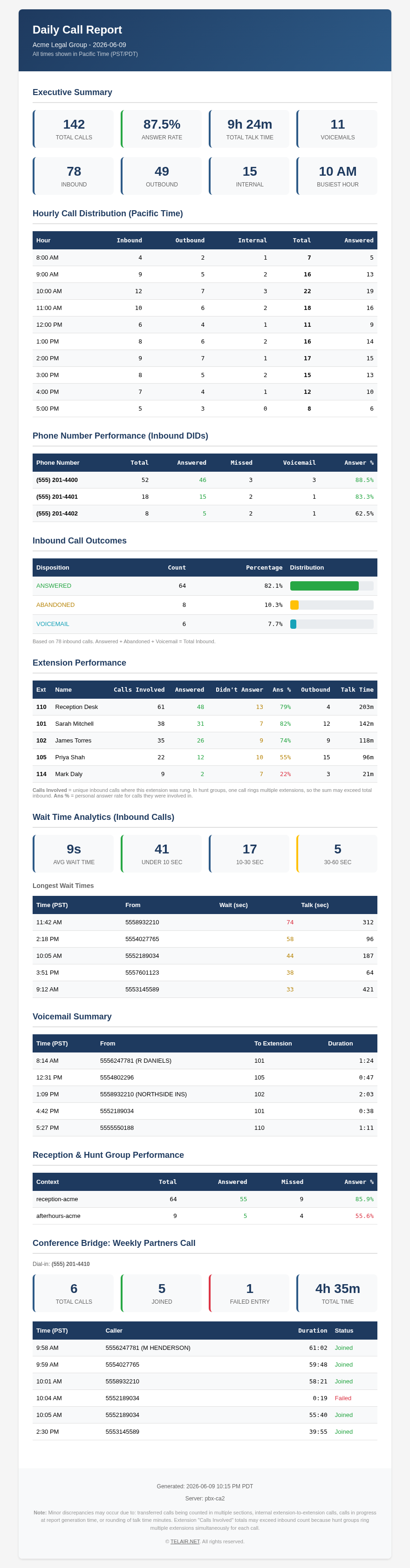
Below is a sample report, followed by a plain-English explanation of every section. The screenshots use fictional sample data — your report will show your own numbers, phone lines, and team members.
Executive Summary
Section titled “Executive Summary”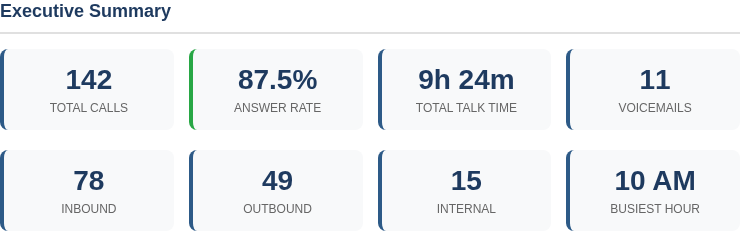
The Executive Summary is your at-a-glance scorecard for the day:
- Total Calls — The number of unique calls your system handled. A call that rang several phones before being picked up still counts as one call.
- Answer Rate — The percentage of calls that were answered by a person. The colored edge of this card gives you an instant health check: green (80% or higher) is excellent, yellow (60–79%) is worth watching, and red (below 60%) suggests callers are frequently not reaching a person.
- Total Talk Time — The combined time your team spent actually talking on calls (ringing and hold time before pickup are not included).
- Voicemails — How many callers left or reached a voicemail box that day.
- Inbound / Outbound / Internal — How the day’s calls break down: calls coming into your business, calls your team placed out, and extension-to-extension calls within your office.
- Busiest Hour — The hour of the day with the most call activity. Useful for staffing decisions — this is when your phones need the most coverage.
Hourly Call Distribution
Section titled “Hourly Call Distribution”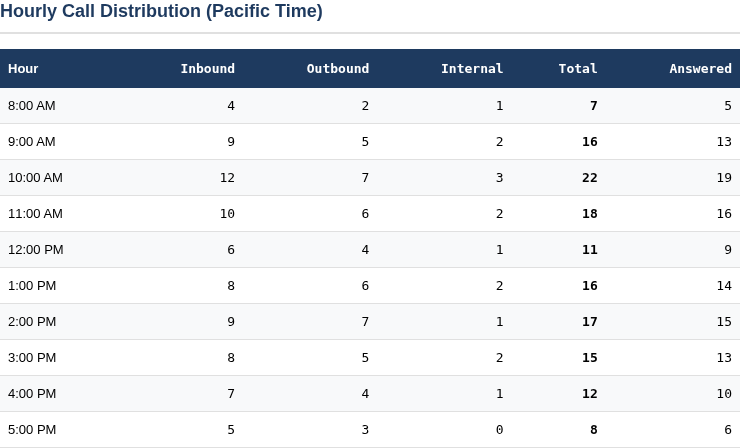
This table shows how call volume was spread across the day, hour by hour, split into inbound, outbound, and internal calls. The Answered column shows how many of each hour’s calls were picked up by a person.
Look for hours where the Total is high but Answered lags well behind — those are the windows where callers were most likely to give up or land in voicemail, and where extra coverage would help most.
Phone Number Performance (Inbound DIDs)
Section titled “Phone Number Performance (Inbound DIDs)”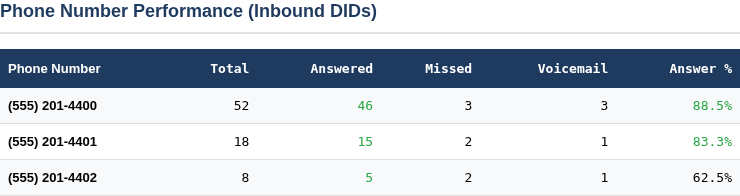
If your business has more than one phone number (for example a main line, an intake line, and a direct office line), this section shows how each number performed:
- Total — Unique calls received on that number.
- Answered — Calls where a person picked up.
- Missed — Calls where no person answered.
- Voicemail — Calls that ended in a voicemail box.
- Answer % — The answer rate for that specific number, color-coded the same way as the Executive Summary (green at 80%+, red below 60%).
This is the quickest way to spot whether one of your advertised numbers is underperforming — for example, a marketing line that rings unattended.
Inbound Call Outcomes
Section titled “Inbound Call Outcomes”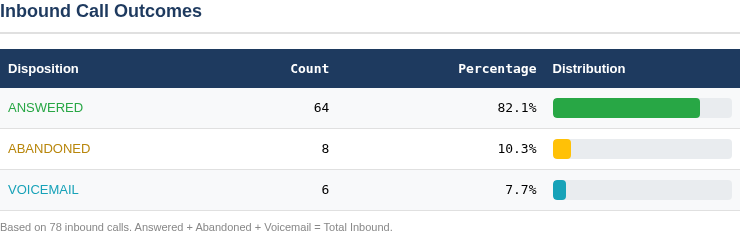
Every inbound call ends one of three ways, and this section shows the split with visual bars:
- ANSWERED (green) — A person picked up the call.
- ABANDONED (yellow) — The caller hung up before anyone answered, and they did not leave a voicemail. These are your most important calls to reduce — the caller wanted to reach you and gave up.
- VOICEMAIL (blue) — Nobody picked up, but the caller reached a voicemail box.
The three categories always add up to your total inbound call count for the day.
Extension Performance
Section titled “Extension Performance”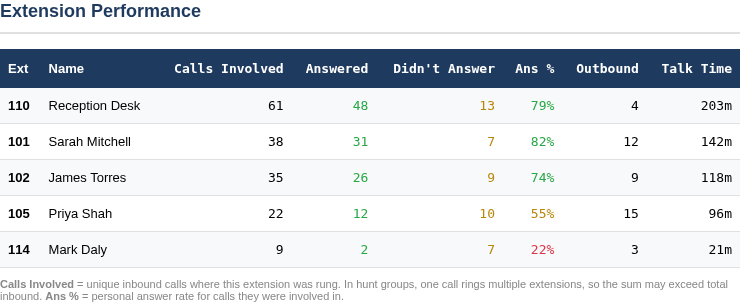
This is a per-person (per-extension) view of the day:
- Calls Involved — The number of unique inbound calls where this extension’s phone rang.
- Answered — How many of those calls this person personally picked up.
- Didn’t Answer — Calls that rang their phone but were answered elsewhere (or not at all).
- Ans % — Their personal answer rate, color-coded: green at 70%+, yellow between 30–69%, red below 30%.
- Outbound — Calls this person placed out.
- Talk Time — Their total minutes on calls (inbound + outbound).
Wait Time Analytics
Section titled “Wait Time Analytics”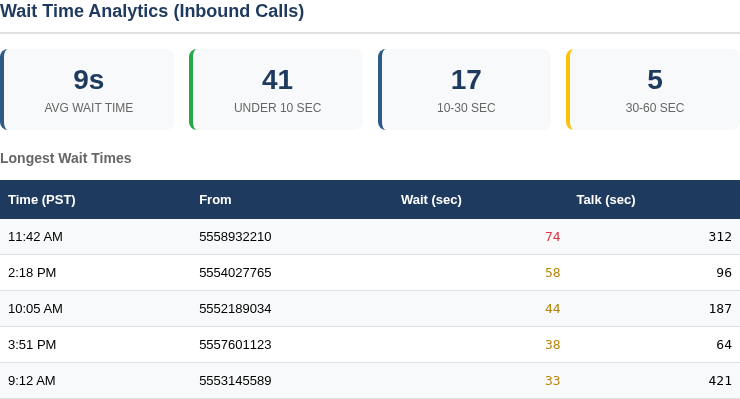
Wait time measures the caller’s experience: the time from when a call first started ringing to when a person picked up.
- Avg Wait Time — The average ring-to-answer time across all answered inbound calls.
- Under 10 sec / 10–30 sec / 30–60 sec — How many calls fall into each wait bucket. Most calls should land in the first card; as a rule of thumb, 10 seconds is roughly two rings.
- Longest Wait Times — The five calls that waited longest before being answered, with the caller’s number and how long the conversation lasted once connected. Waits over 30 seconds show in yellow, over 60 seconds in red.
Voicemail Summary
Section titled “Voicemail Summary”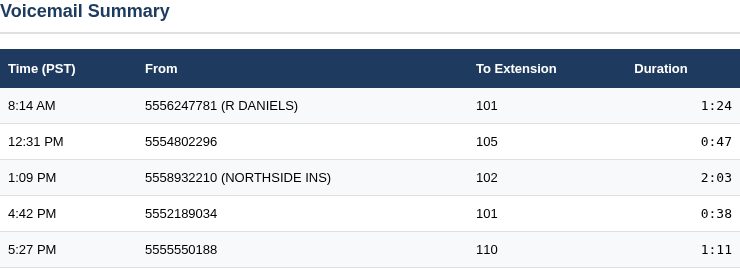
On days when callers reached voicemail, this section lists each message: the time, the caller’s number (with name when caller ID provides one), the extension whose mailbox received it, and the message length.
Use this as a morning checklist — every row is a caller who wanted to reach you and is waiting for a callback.
This section only appears on days when at least one voicemail was left.
Reception & Hunt Group Performance
Section titled “Reception & Hunt Group Performance”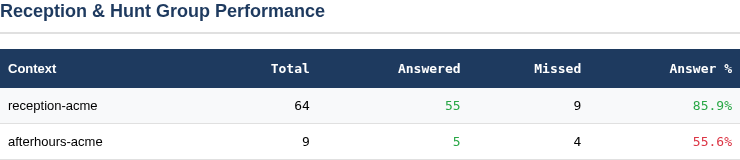
A “hunt group” (or ring group) is a set of phones that ring together or in sequence — most commonly your reception or main-line group, and often a separate after-hours group. This section shows how each group performed as a team:
- Total — Unique calls that entered the group.
- Answered / Missed — Whether anyone in the group picked up.
- Answer % — The group’s collective answer rate.
A low answer rate on an after-hours group is normal (those calls usually route to voicemail by design). A low answer rate on your main reception group during business hours deserves attention.
Conference Bridge Activity
Section titled “Conference Bridge Activity”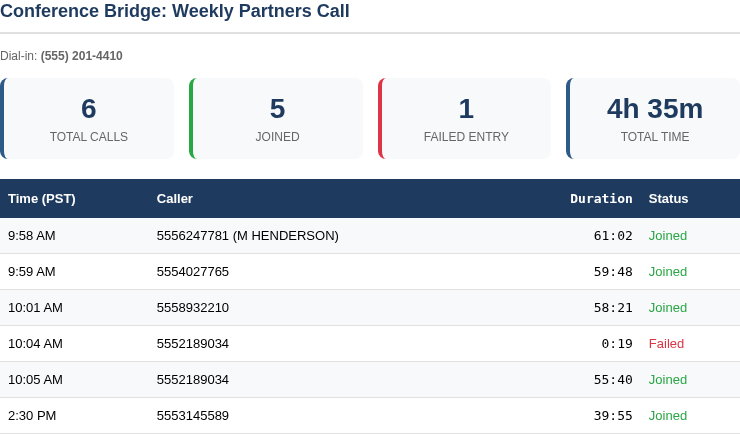
If your account includes a conference bridge (a dial-in meeting line), this section summarizes its use:
- Total Calls — Everyone who dialed the bridge number.
- Joined — Callers who successfully entered the conference.
- Failed Entry — Callers who connected for 30 seconds or less — typically a wrong PIN, an early hang-up, or someone dialing in before the meeting started. In the sample above you can see a caller who failed entry at 10:04 AM and immediately redialed and joined successfully at 10:05 AM — a very common pattern.
- Total Time — Combined participant minutes across all conference calls.
This section only appears for accounts with an active conference room.
Why the Numbers May Not Add Up Perfectly (Accuracy Disclaimer)
Section titled “Why the Numbers May Not Add Up Perfectly (Accuracy Disclaimer)”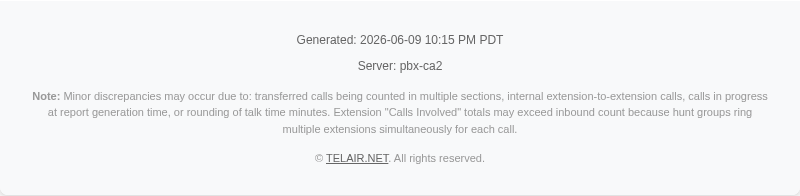
The Daily Call Report is generated automatically from your phone system’s call detail records. It is designed to give you an accurate operational picture of your day, but small discrepancies between sections are normal and expected:
- Transferred calls can be counted in more than one section (the call legitimately involved multiple extensions or groups).
- Hunt groups ring multiple phones for a single call, so per-extension “Calls Involved” totals will exceed your inbound call count.
- Calls still in progress when the report is generated in the evening may be partially counted, and will be reflected fully in context the following day.
- Talk time is rounded to whole minutes in some sections.
- Caller ID names depend on what the caller’s phone company transmits and may be missing or abbreviated.
The report is provided on a best-effort, informational basis. It is not a billing document — your TELAIR invoice is the authoritative source for billed usage. If a figure in the report ever looks substantially wrong (not just a small cross-section mismatch), please contact TELAIR support so we can investigate.
Enrollment, Recipients, and Customization
Section titled “Enrollment, Recipients, and Customization”The Daily Call Report is configured per organization by the TELAIR team. To:
- enroll in the nightly report,
- add or remove recipients,
- change the delivery time or time zone, or
- ask about customizations for your business,
simply contact TELAIR support through your usual channel.
For any further questions about your Daily Call Report, feel free to reach out to TELAIR support.